In Không Tiếp Xúc Với PaperCut: An Toàn – Hiện Đại – Tiện Lợi Cho Môi Trường In Ấn Công Cộng Trong các môi trường sử dụng máy in công cộng như trường học, thư viện, văn phòng chia sẻ (co-working), bệnh viện, doanh nghiệp lớn, nhu cầu đảm bảo an toàn và hạn chế tiếp xúc trực tiếp khi sử dụng thiết bị là vô cùng quan trọng. PaperCut mang đến giải pháp In không tiếp xúc (Contactless Printing), giúp người dùng thực hiện toàn bộ quá trình in – xác thực – nhận bản in mà không cần
Setting up Azure Standard Sync with PaperCut MF and PaperCut NG

Manage system backups
As with any application, it is important to ensure that backups are performed regularly. PaperCut NG/MF includes a built-in database export that saves the state of the database to a file. This functionality is designed to complement (not replace) a good system-wide backup process. The export is stored in the industry standard XML format and compressed using the standard ZIP format to reduce disk-space on the server and your backup medium. The use of these open standards ensures that your data is always available and accessible. As PaperCut NG/MF is centrally managed, the only database that requires backup is on the Application Server. Secondary print servers and Site
Plan your PaperCut Application Server Migration
Plan your PaperCut Application Server Migration “I’m a Systems Administrator about to set up a new print server on a newer/different operating system and I want to know how to migrate the PaperCut Application Server. What are the best steps to take?” Our best server migration advice Read this article end-to-end before you start. Do the Preparation Checklist tasks first. Schedule downtime and perform the Cutover Checklist tasks when you are ready to transition to the new server. Have a backup plan and be ready to revert to the old server in an emergency. To keep things simple give the new PaperCut server the same IP address and Hostname as the old one (but
How to migrate your Windows Print Queues
“Help! I’m a Windows print server administrator and I want to copy all of my printers and drivers to a new Windows print server. What’s the fastest and best way to do this?” Migrating or Backing up your Windows Print Server Did you know that since Windows Server 2008 R2, you can use Microsoft’s Print Management Console to take a backup of your print server or migrate all of your print queues, drivers, and most ports to a new server? One “gotcha” to keep in mind is that this tool can only migrate certain types of printer ports like Standard
Windows Connection Limit
Windows Connection Limit “We’re looking to set up PaperCut and we want to cut costs by not paying for a Windows server license. Can we install PaperCut on spare Windows Home or Pro computer that we have nearby?” QCan you install PaperCut on a non-server edition of Windows? For our more indie PaperCut users, it’s quite a common practice to use a run-of-the-mill Windows PC to act as your PaperCut Server initially because you have as a small number of end-users who are Printing via PaperCut NG or MF. However, the moment your office starts to boom and you need to expand your headcount, there’s a good chance you may run into
Giải pháp PaperCut Mobility miễn phí thay thế Google Cloud Print

Bạn lo lắng không biết phải làm gì sau khi Google Cloud Print kết thúc? PaperCut Mobility Print cho phép bạn in từ Chromebook, iPad, iPhone, Mac, Windows và thiết bị Android một cách nhanh chóng. Nhờ công nghệ Cloud Print cải tiến của chúng tôi, người dùng Chromebook và Windows có thể in từ xa và bên ngoài mạng bằng cách gửi lệnh in qua internet (sắp có hỗ trợ Mac). Cloud Print không được hỗ trợ trên Android và iOS. Giải pháp nhỏ Mobility này cũng tương thích với mọi thương hiệu máy in – và việc thiết lập
PaperCut MF for Konica Minolta
Fully featured print management Calculate, recover and reduce print output costs across your organization with PaperCut MF on Konica Minolta printers and multifunction devices. Secure documents with Find-Me printing, user authentication and Integrated Scanning. Equip users for BYOD print from any browser, iOS or Chromebook. Supported by your Konica Minolta Reseller and a worldwide network of experts. Rules aren’t made to be broken Need to reduce cost and waste in your business? No matter what your network size, it’s simple with print policies and rules-based printing to define what is printed, how it is printed and where it is printed. Report usage and costs by page, user, cost center/department, device and function. Integrated Scanning
MFD Deploy printers
Life’s too short to deploy printers That’s why we created the Enhanced Deployment Project Streamline, simplify, and speed up the deployment of large fleets. Bulk deployment enables easy fleet installations in a flash. Feature history: Enhanced MFD Deployment on 20.0 – Feature update now allows the CSV file to be imported via the admin console UI, in addition to supporting adding staged MFDs prior to their delivery PaperCut version 20.0 Deploy multiple MFDs in bulk Stage multiple MFDs in bulk Bulk-deploy CSV via Server Command Bulk-deploy CSV via PaperCut UI Supported platforms: Dell, Fuji Xerox, HP, Konica Minolta, Kyocera, Ricoh, Sharp,
Tablet Mobile Release – Khóa màn hình Tablet
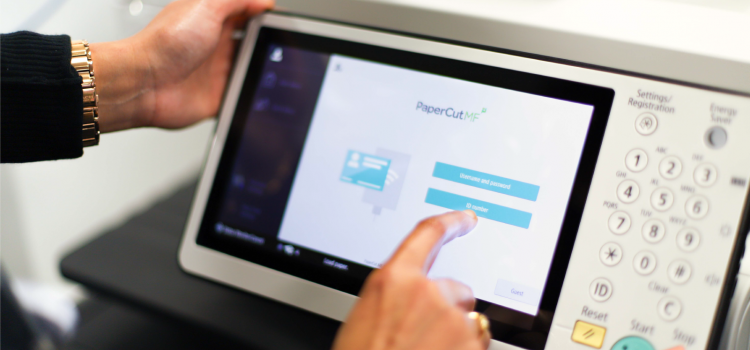
Locking the tablet to restrict exit How to make sure your guests can’t close the app Written by Selin Updated over a week ago You can easily lock your devices if you don’t want your customers to exit the menu. We strongly recommend using Guided Access for your own security. To lock your menu on iPads: Open Settings from your iPad’s main screen. Enter “General”. Choose “Accessibility” on the right side. Activate “Guided Access” Enter “Passcode Settings” and set a passcode for guided access. Open the FineDine app. Click on the home button of your iPad 3 times. The home button