
This section of the manual is split into different sections for ease of use, one section covering Mac OS 10.8+ installations, and another covering Windows hosted print queue setup. In most cases only one section applies on your network. As Mac systems have become more popular recently, many sites are opting for Mac print servers to support their Mac workstations. You can install PaperCut NG/MF directly on a Mac print server, offering native, end-to-end Mac printing. Terminology Below is an overview of the common terminology. Print queue: There are typically two ways of providing shared multi-system access to a printer: Configure each system to print directly
Using the PaperCut NG/MF LPD service
Using the PaperCut NG/MF LPD service Install the PaperCut NG/MF LPD service After installing the Microsoft Windows version of PaperCut’s Primary, Secondary, or Site Server software, the PaperCut LPD Service Setup Wizard style installer is available under [appath]\providers\lpd\win\pc-lpd-installer.exe LPD Servers listen on port 515 by default, so Administrators must ensure that this port is open to requests from clients (check that the port is not blocked by your firewall). The installation wizard also checks for previous versions of the Windows LPD Server, and disables these to ensure there is no port conflict. It’s important at this point to consider how the print jobs are being tracked. The print jobs
Windows hosted print queues
Windows hosted print queues IMPORTANTThis is the original method of hosting print queues. Now there’s an easier and faster method where you set up print queues with the LPD protocol. To find out how, take a look at Printing from macOS to shared Windows Server queues with LPD and SMB. This section discusses printer configuration on Mac OS X workstation in environments systems where the print queues are hosted on a Windows operating system. See Mac hosted print queues for OS 10.8+ if your print queues are hosted on Mac OS 10.8+. When a printer from a Windows environment is shared and added to a
PaperCut MF cho máy HP
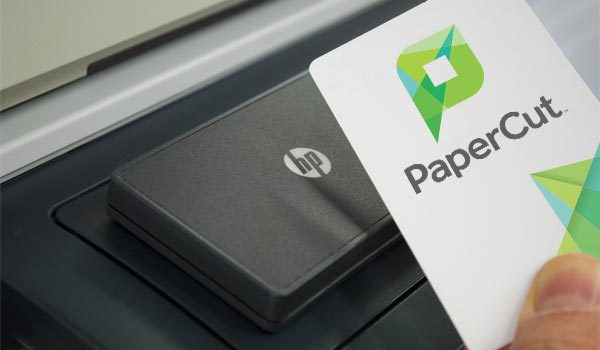
Fully featured print management Create a secure document environment, encourage responsible print behavior and make users or departments accountable for their usage with PaperCut MF on HP devices. Track, charge, manage quotas and control of Print, Copy, Scan and Fax Secure documents with Find-Me printing and multiple user authentication methods and Integration Scanning Provide users with simple BYOD printing from any device and operating system Supported by your HP Reseller and a worldwide network of experts Protect sensitive information Leverage your existing sign-on infrastructure and put users in charge of their own documents with Find-Me printing. Set up printer job authentication for HP login using Microsoft Active Directory, LDAP, or other
PaperCut MF for Epson
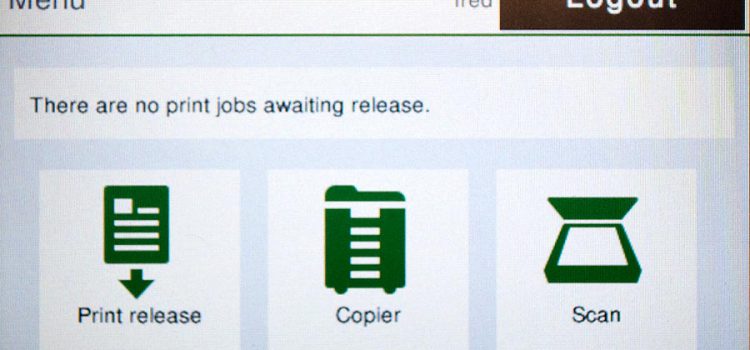
Fully featured print management Extend the power of Epson MFDs with PaperCut MF – developed by Epson, approved by PaperCut. Epson has developed the compatibility for selected multifunction devices allowing you to take full control and manage your printing, copying, scanning and faxing. Secure documents with Find-Me printing, user authentication and Integrated Scanning Provide users with simple BYOD printing from any device and operating system Supported by your Epson Reseller and a worldwide network of experts Play it by SysAdmin rules Need to reduce cost and waste in your business? No matter what your network size, it’s simple with print policies and rules-based printing to define what is
One-click Reports
Your one-stop shop for one-click reports From what people print to how they impact the environment, our one-click collection has your reporting needs truly covered. Click each report for a visual sample, further details, and the insights you can expect. Looking for customizable reports with filtering and sorting to boot? Check out our combination (ad-hoc) reports and Custom Reports. User reports User List Executive Summary User Printing – Summary User Printing – Job Type Summary User Printing – Printer Summary Department Printing – Summary Department Printing – Job Type Summary Office Printing – Summary Department Print/Copy/Scan/Fax – Breakdown Deleted User List User Printing
Thiết lập báo cáo riêng với Jasper
A How-To Guide to Custom Report writing with JasperSoft Studio (Note: For information on writing and running reports externally with other report engines, see Custom Reports With Other Report Engines). Introduction PaperCut ships with a 3rd party reports engine called Jasper. Since PaperCut 19.1, it is possible to add custom created reports that are compatible with this engine to an instance of PaperCut PaperCut inbuilt reports have used the Jasper engine for some time now. PaperCut 19.1 adds the capability to run custom-written reports that are compatible with the Jasper engine. This guide provides a brief overview of the process of writing a custom report. We assume
PaperCut MF for Canon
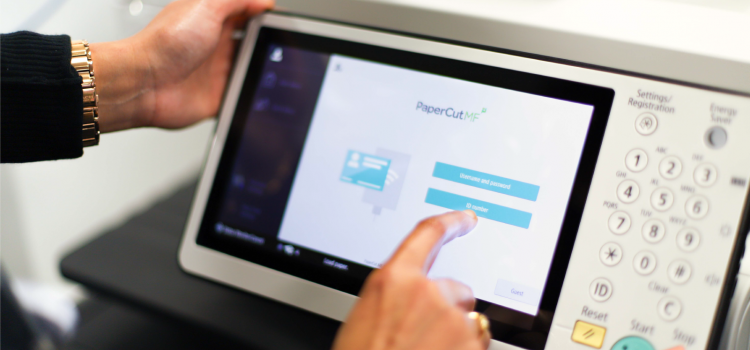
Print management for Canon Multifunction Printers (MFPs) Create a secure document environment, encourage responsible print behavior and make users or departments accountable for their usage with PaperCut MF on Canon devices. Track, charge, manage quotas and control of Print, Copy, Scan and Fax An easy, common user interface across Canon multifunction printers Account selection changes and secure print release at the multifunction device’s touchscreen Integrated Scanning (Canon Gen 3 MEAP compatible devices only) with Scan to Cloud and OCR (Optical Character Recognition) to create text searchable documents Simple setup for administrators Print management by SysAdmins for SysAdmins PaperCut MF’s server software is easy to set up on a choice
PaperCut MF for Xerox
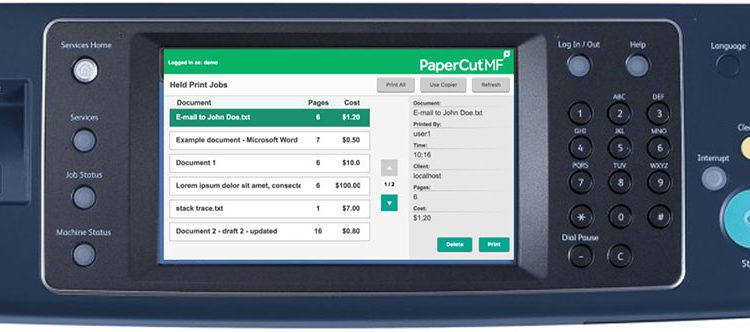
Print management for Xerox Multifunction Printers (MFPs) Take full control and manage your printing, copying, scanning and faxing with PaperCut MF on Xerox printers and multifunction devices. Secure documents with Find-Me printing, user authentication and Integrated Scanning Provide users with simple BYOD printing from any device and operating system Supported by your Xerox Reseller and a worldwide network of experts Play it by your rules Need to reduce cost and waste in your business? No matter what your network size, it’s simple with print policies and rules-based printing to define what is printed, how it is printed and where it is printed. Report usage and costs by page, user,
PaperCut MF for Ricoh
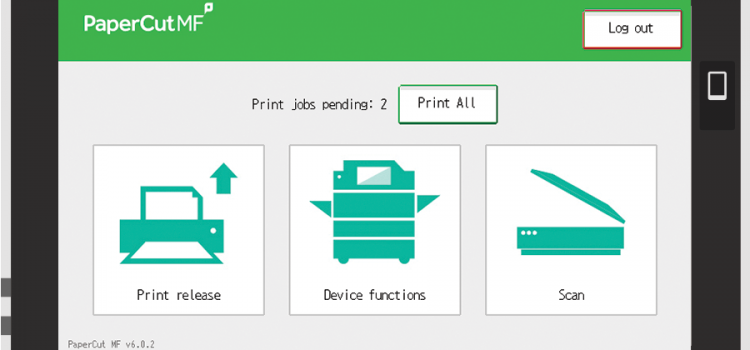
Fully featured print management Take full control and manage your printing, copying, scanning and faxing with PaperCut MF on Ricoh printers and multifunction devices. Secure documents with Find-Me printing, user authentication and Integrated Scanning Provide users with simple BYOD printing from any device and operating system Certified and supported by your Ricoh Reseller and a worldwide network of experts Protect sensitive information Put users in charge of their own documents with Find-Me printing (“Pull Printing”) and their own devices with Mobility Print. Set up printer job authentication for Ricoh login using Microsoft Active Directory, LDAP, or other authentication sources and enable Secure Print Release via proximity or swipe card. Want to experience PaperCut MF? We’ll